Class join codes
Every course has one join code. Students use it to hand in work to any open assignment in that course, without an account. You can share the code, a link, or a QR code.
Step 1: Find your class join code
Open the course. The Class join code sits in the top right corner of the course page. The Instructions link under it brings you back here.
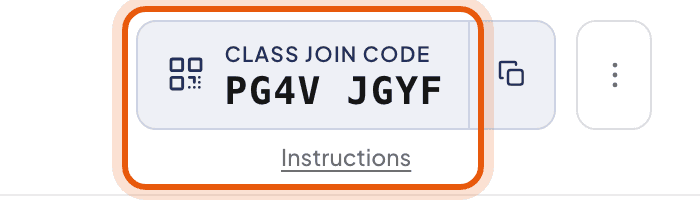
Where it is: the Class join code in the top right corner of the course page. Step 2: Share it with your class
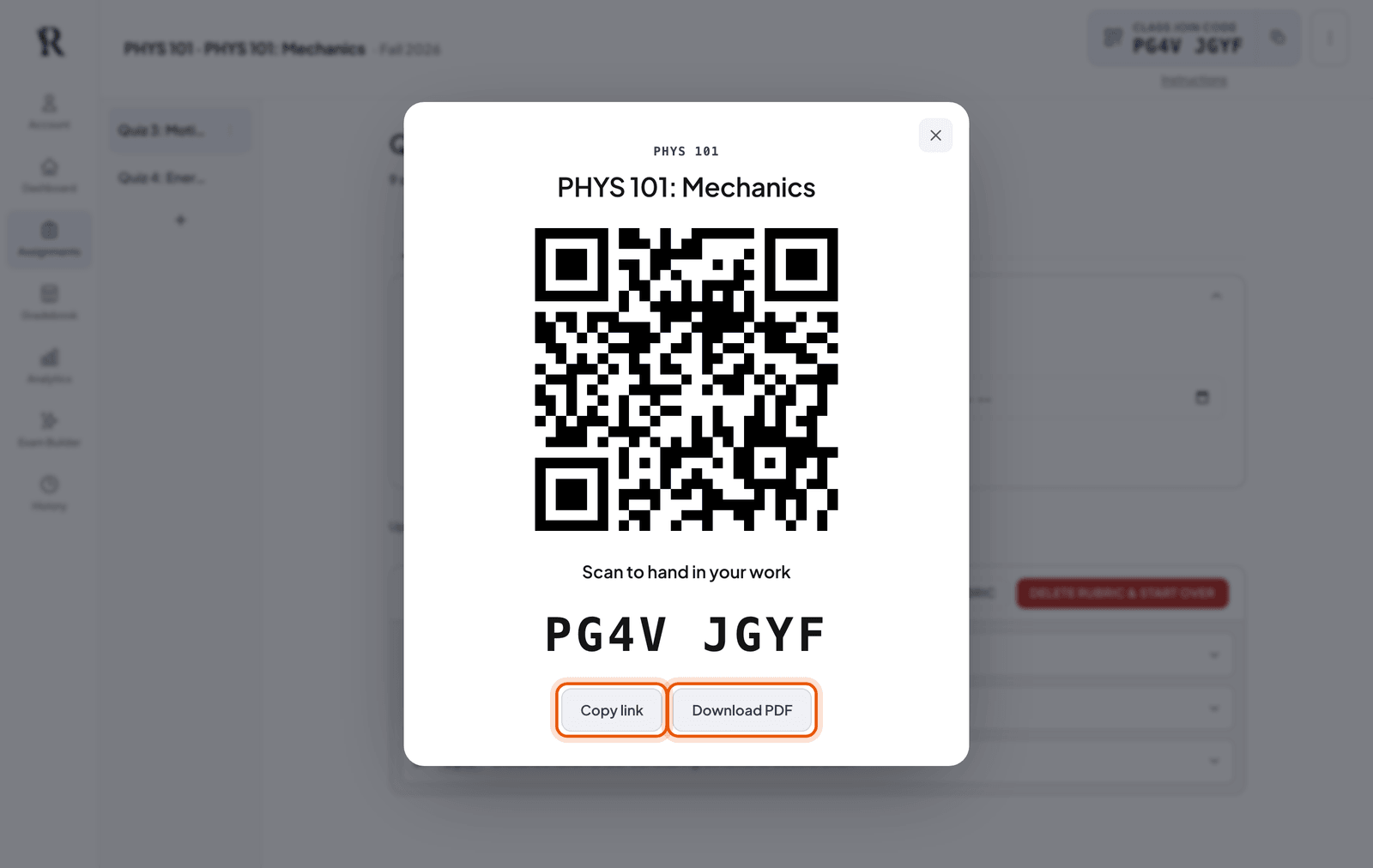
Click the code to open a full-screen QR code you can put on the projector. Students scan it with a phone camera and land on the right course. From the same screen, Copy link gives you a link to post in your LMS or email, and Download PDF gives you a printable handout.
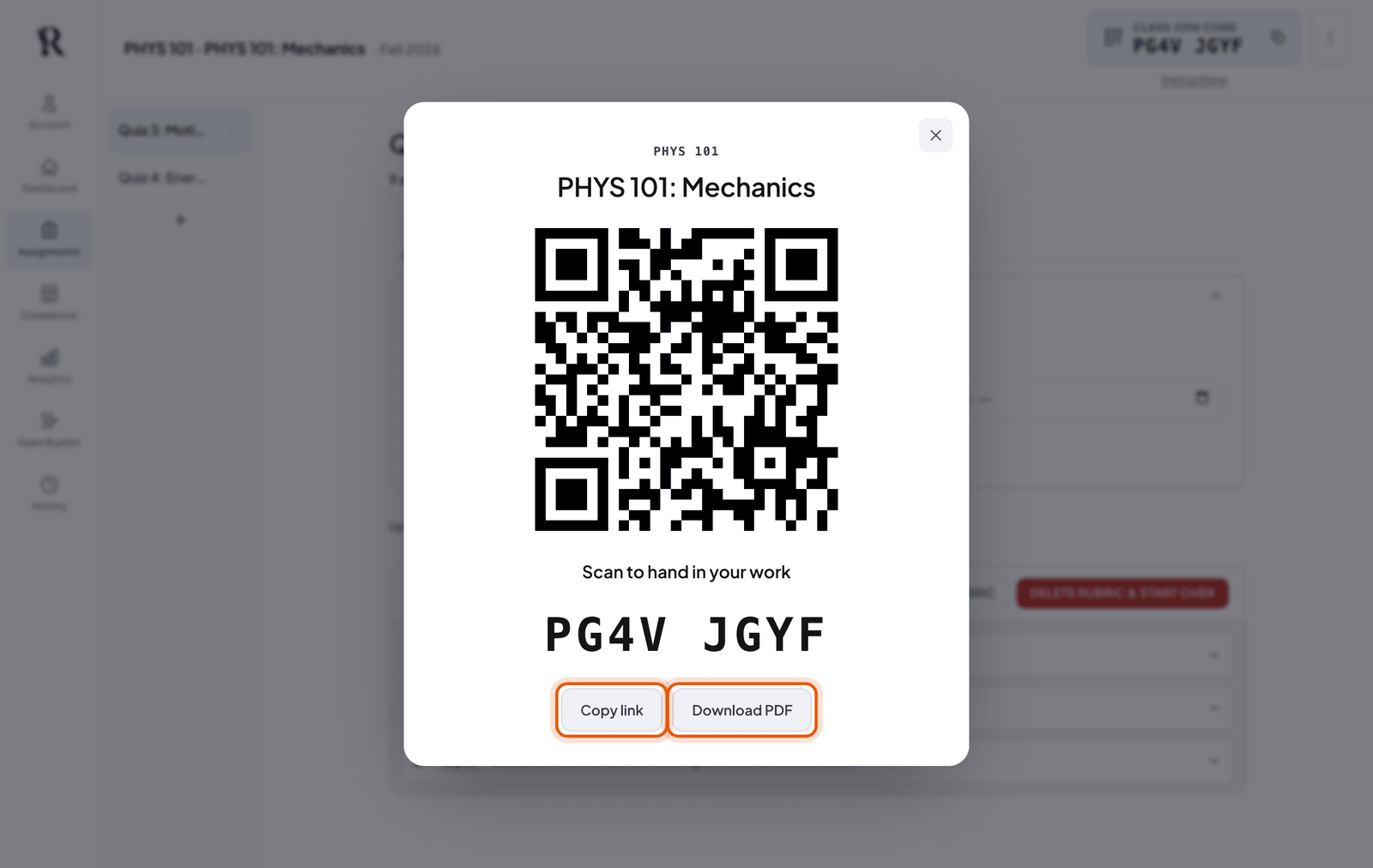
Where it is: the QR code in the middle, with Copy link and Download PDF under it. Or just tell students to go to ravengrader.com/join and type the code. The steps they follow are in Handing in work.
Step 3: Set when students can hand in
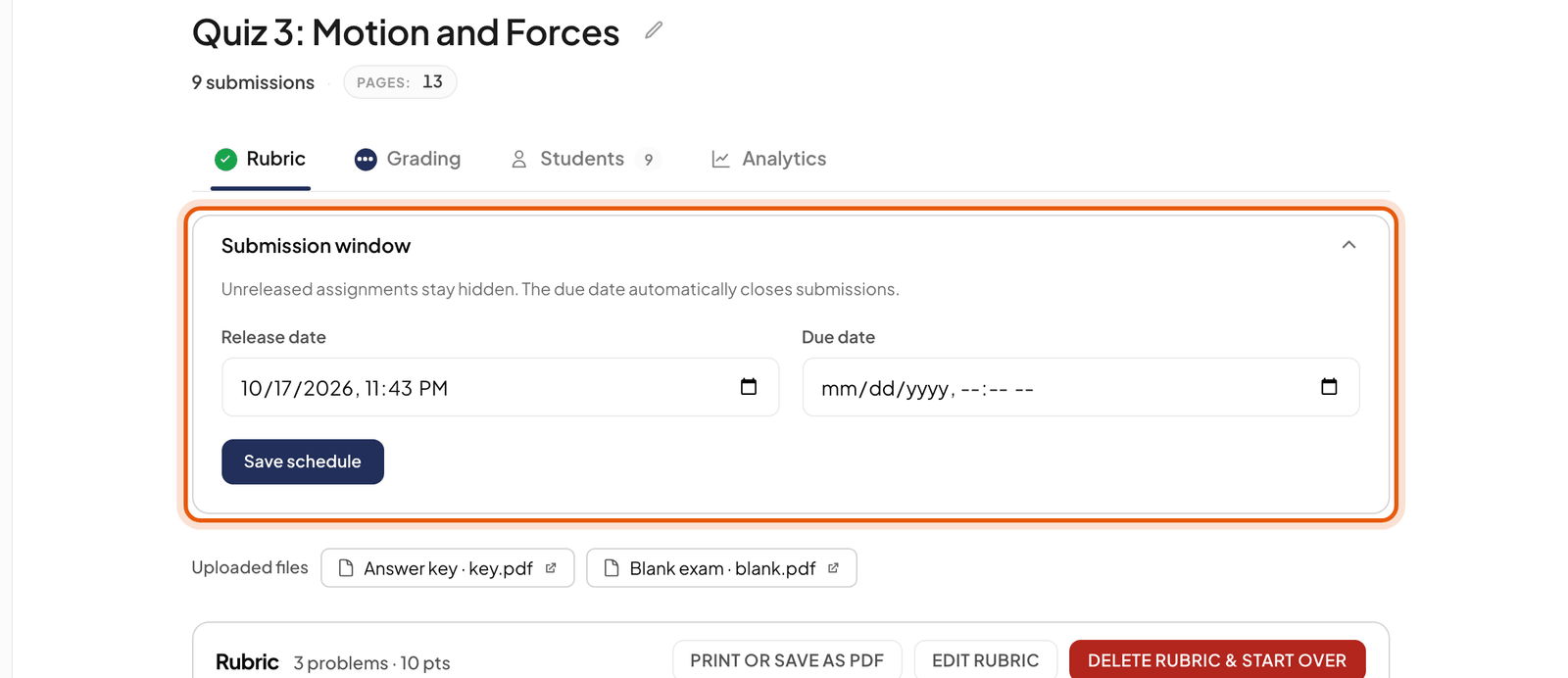
Open Submission window at the top of the assignment’s Rubric tab to set a release date and a due date, then click Save schedule. A new assignment is open right away, with no due date. Set a release date and students won’t see it until then. After the due date they still see it, greyed out, but can’t hand anything in.
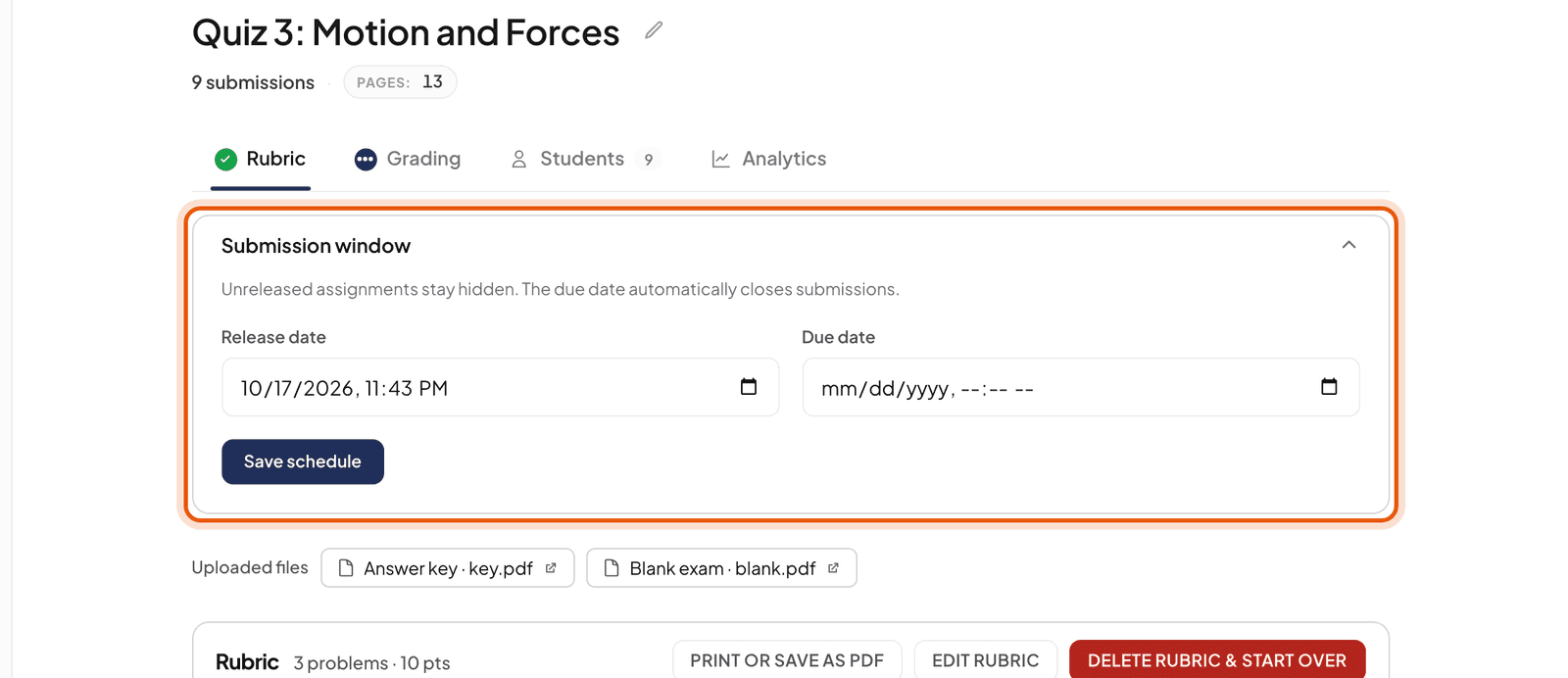
Where it is: the Submission window panel at the top of the Rubric tab. Click it to open it. Step 4: Grade what comes in
Work students hand in shows up in the assignment by itself, next to anything you uploaded. Grade it the same way as the rest. See Quickstart.
Keep the code in the class
- Anyone with the code can hand in work to your course’s open assignments, so share it with your students, not on a public page.
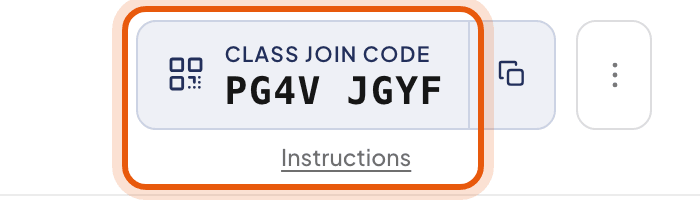
- Code got out? Open the code’s menu and choose Create new code. The old one stops working.
- The code never shows grades. Each student gets their own private report link once you send results.