Handing in your work
For students. Your instructor gives you a class join code, a link, or a QR code. You don’t need an account. A phone camera is enough.
Step 1: Enter your class join code
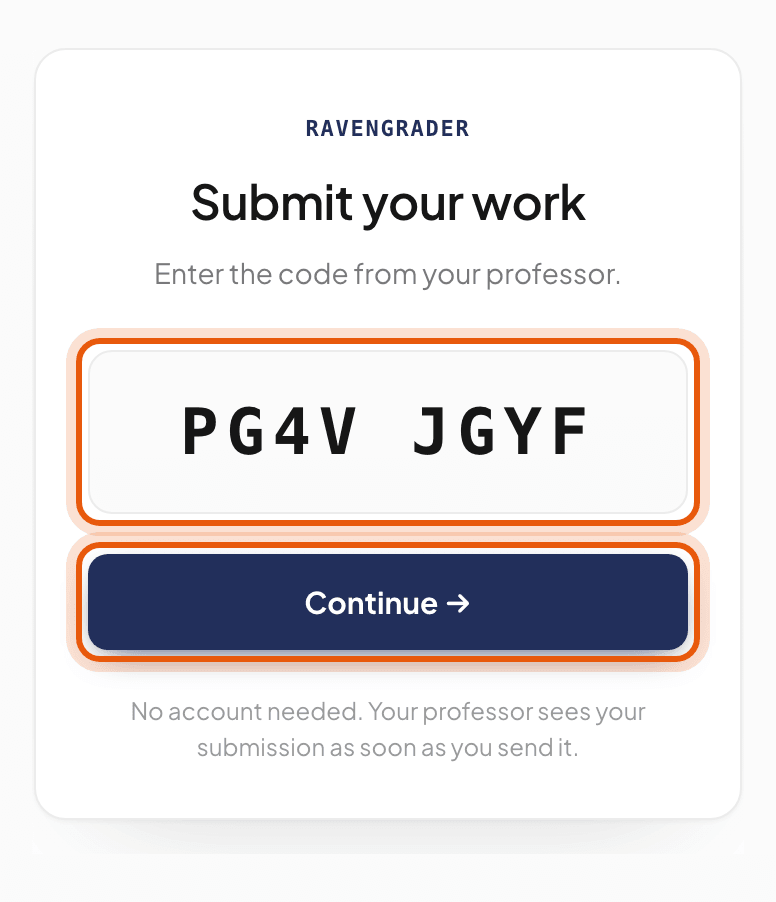
Go to ravengrader.com/join, or scan the QR code your instructor shows in class. Type the code exactly as shown and tap Continue. If you opened your instructor’s link, the code is already filled in.
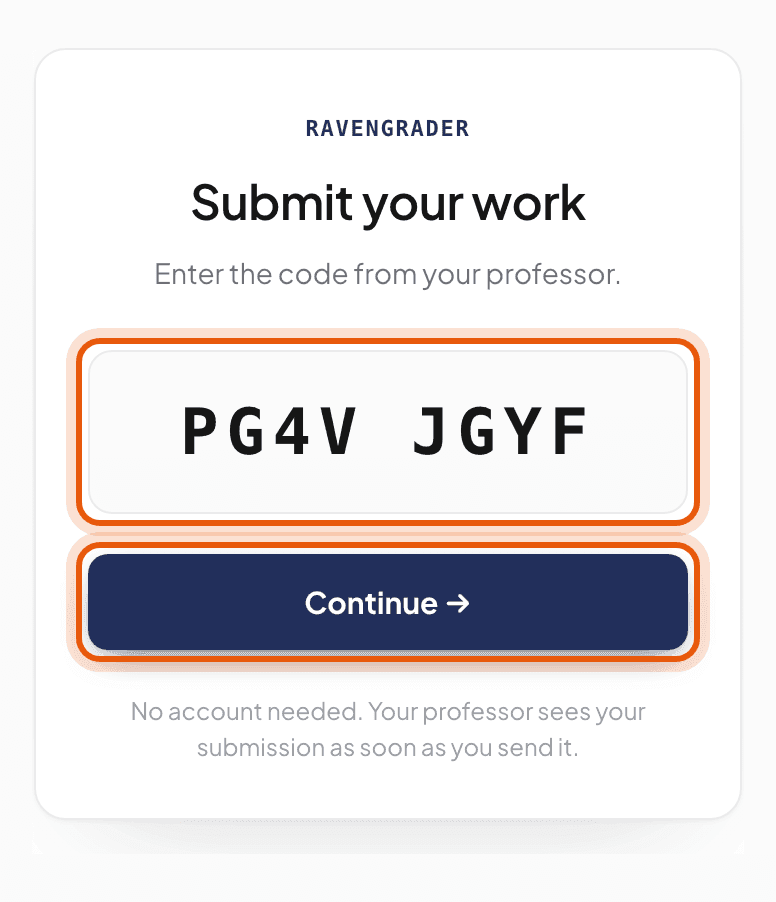
Where it is: the code box, with Continue under it. Step 2: Pick the assignment
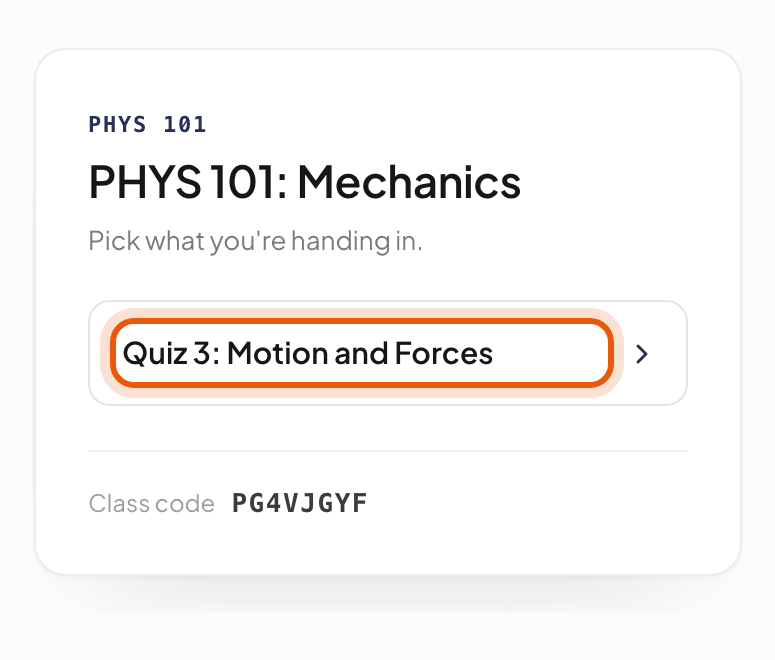
You’ll see your course name and its open assignments. Tap the one you’re handing in. If it’s not your course, go back and check the code.
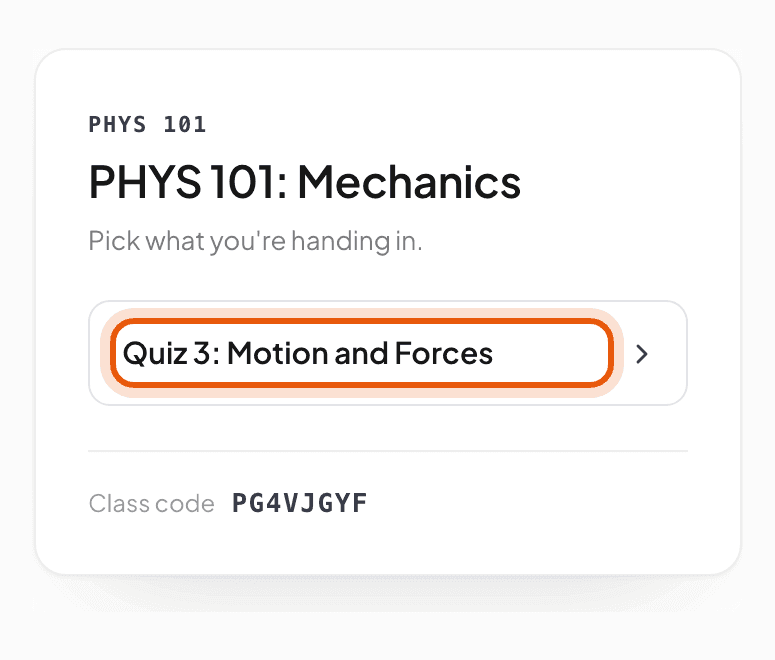
Where it is: the assignment, under your course name. Step 3: Add your name and your pages
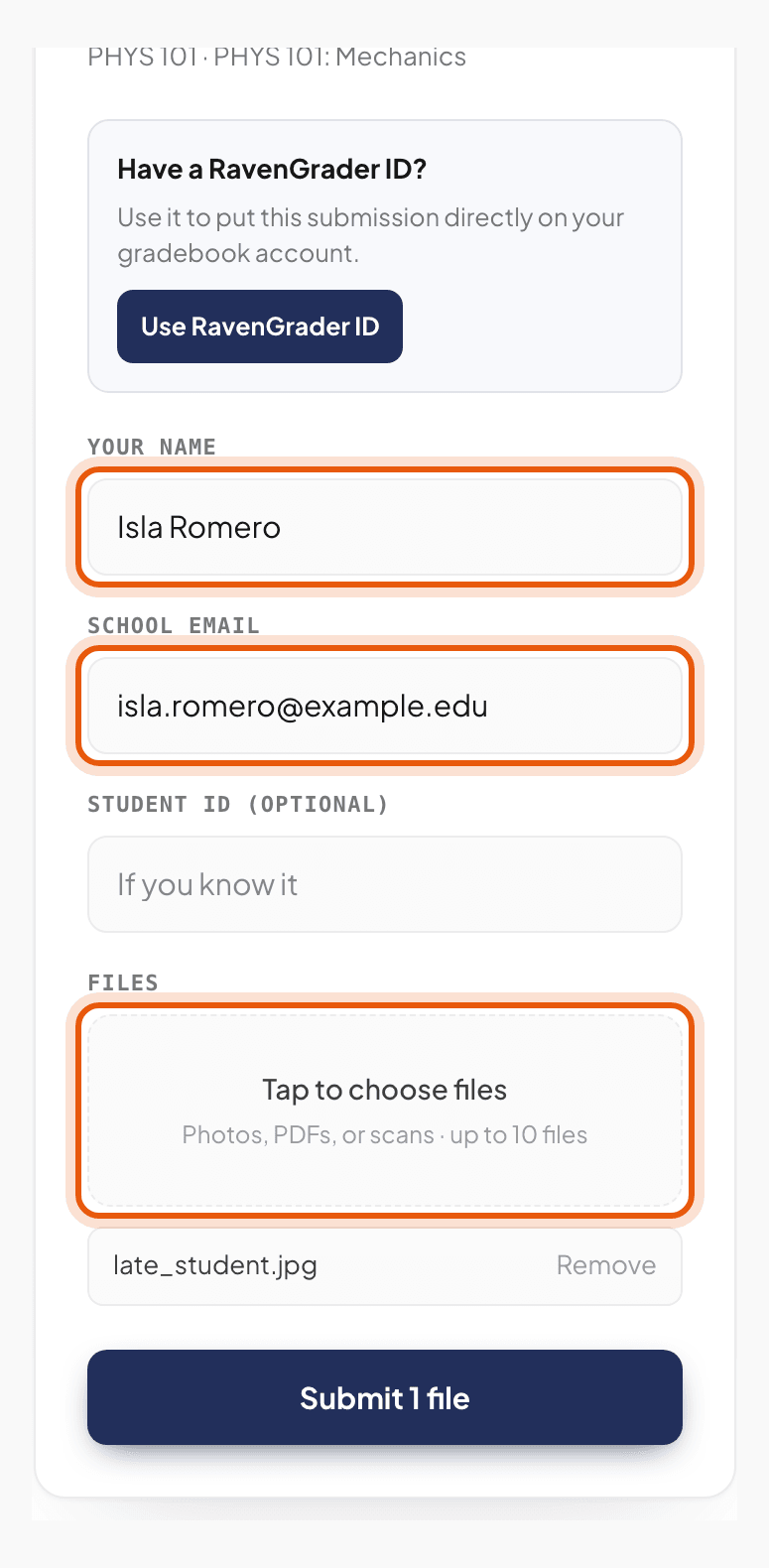
Type your name and school email. Add your student ID too if your instructor asked for it. Then tap Tap to choose files and add your work: clear photos, scans, or a PDF, up to 10 files. Include every page. When they’re all listed, tap Submit.
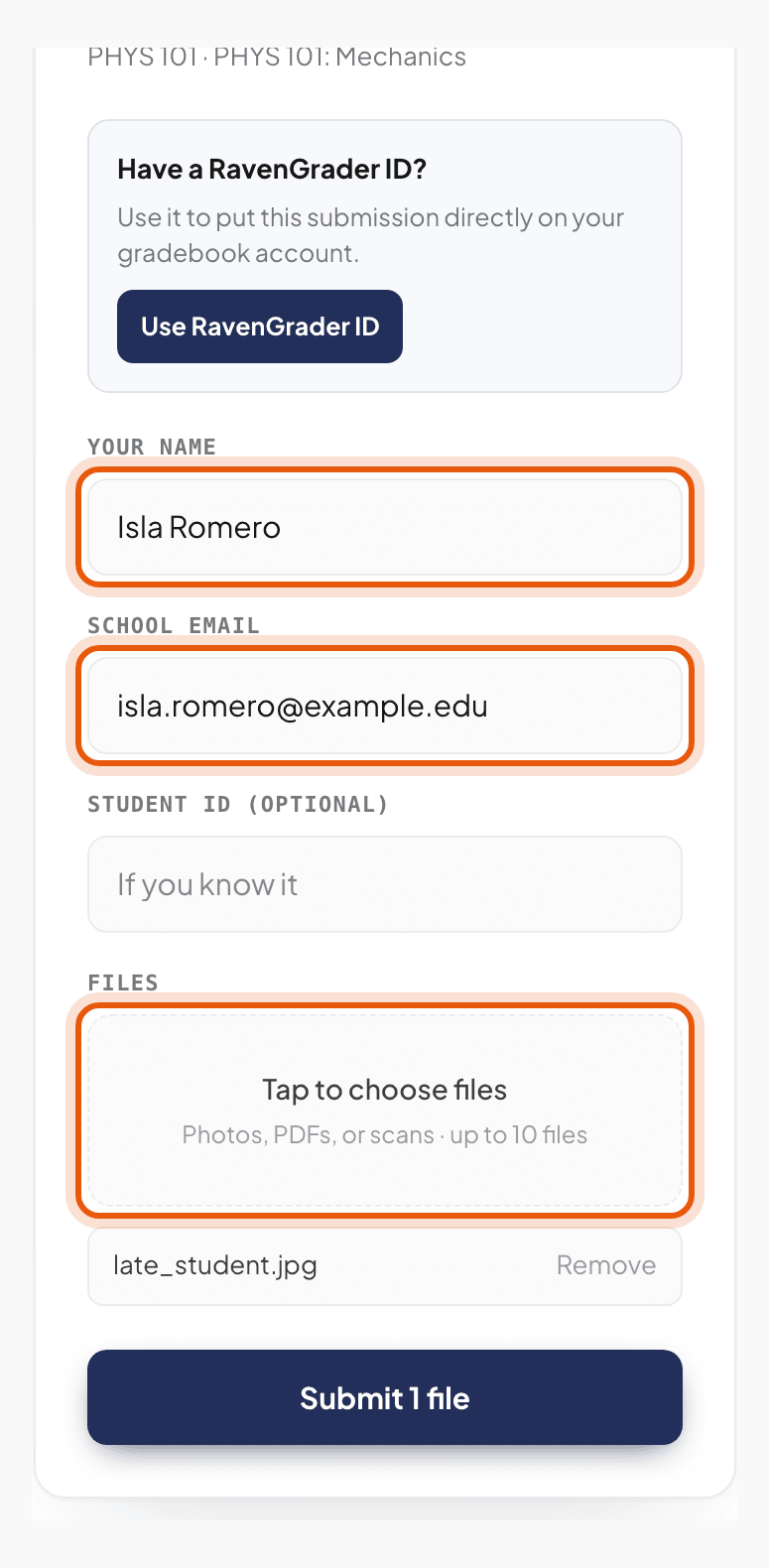
Where it is: your name and email, the Files box under them, and Submit at the bottom. Got a RavenGrader ID from your instructor? Tap Use RavenGrader ID at the top of this form, and your work goes straight onto your account.Step 4: Check it, then submit
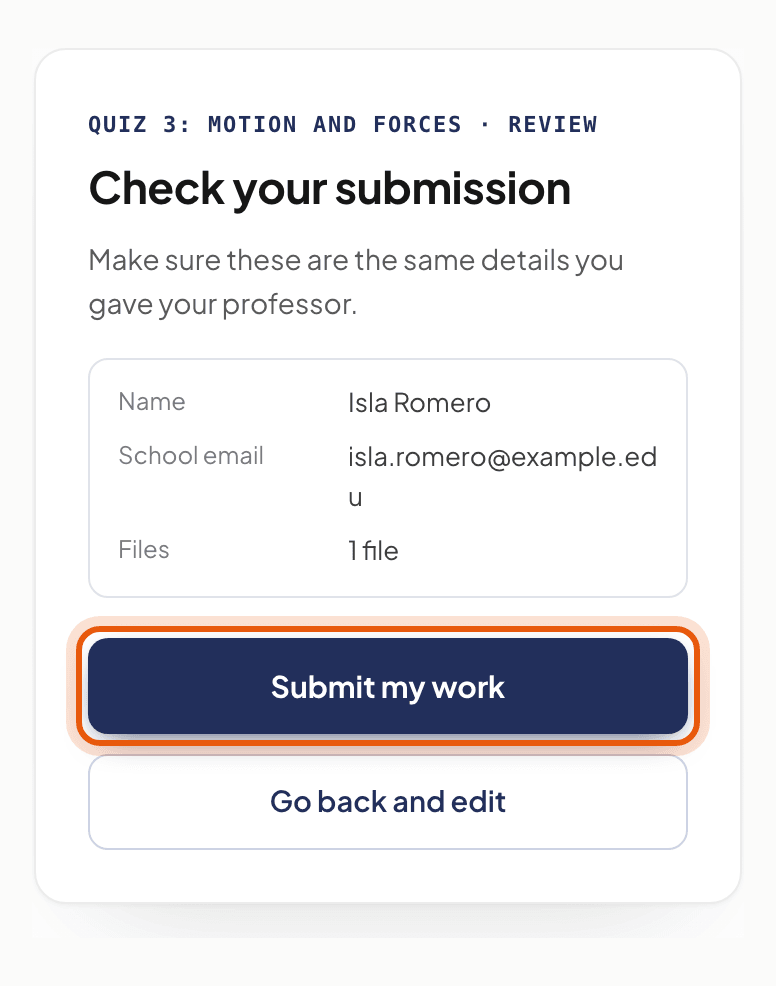
RavenGrader shows your name, email, and how many files you’re handing in. If it’s right, tap Submit my work. If not, tap Go back and edit.
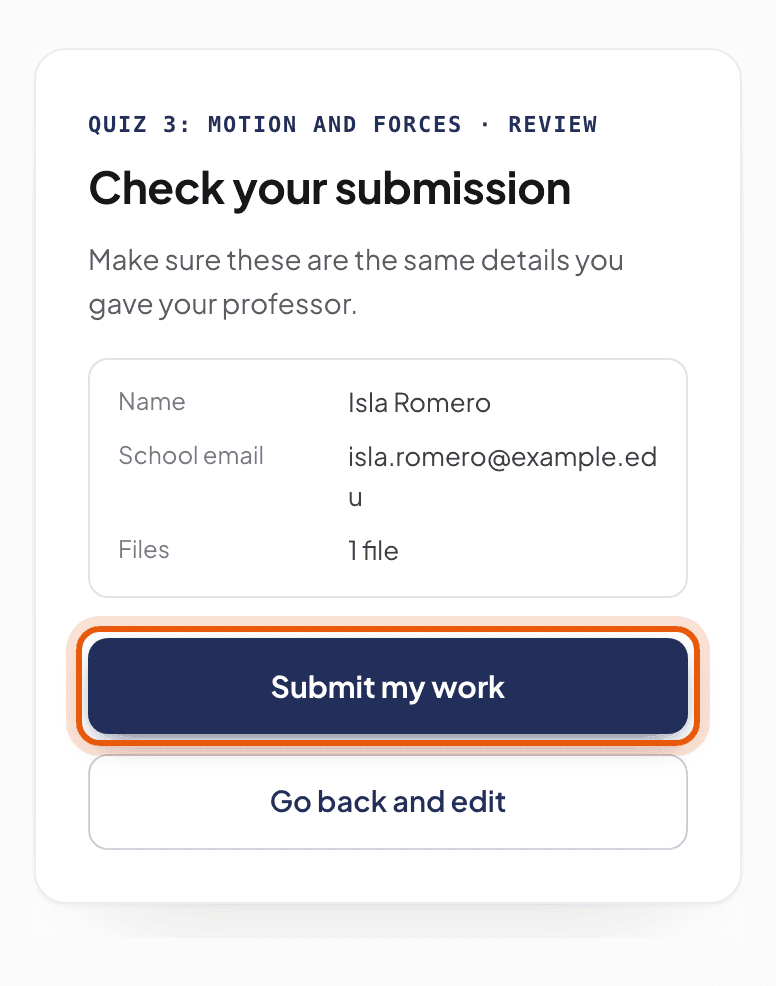
Where it is: your details for a last look, with Submit my work under them. Step 5: Wait for “You're all set”
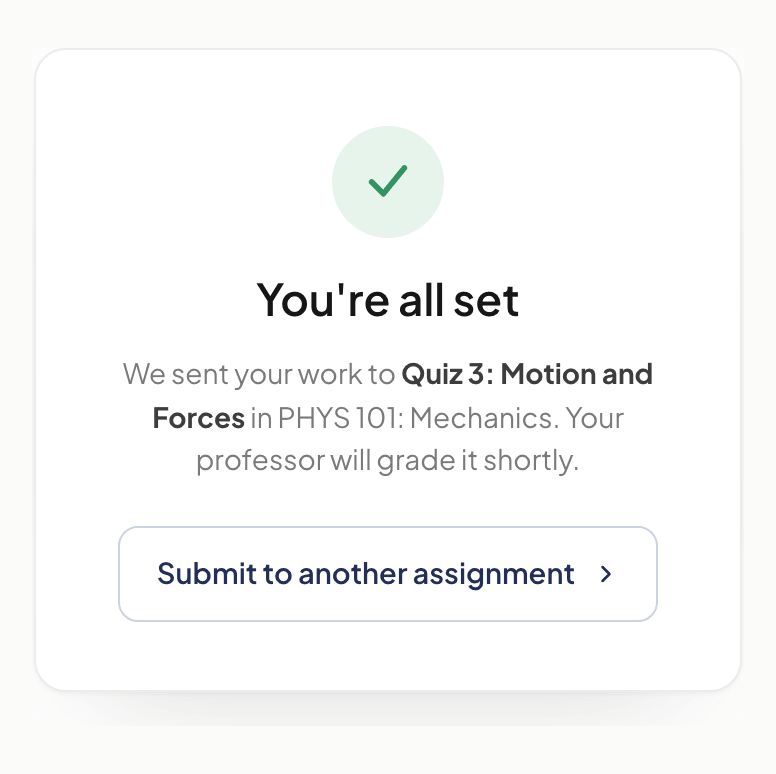
Keep the page open until it says You’re all set. That means your instructor has your work. If you close the page before then, the upload may not finish. Handing in more than one assignment? Tap Submit to another assignment.
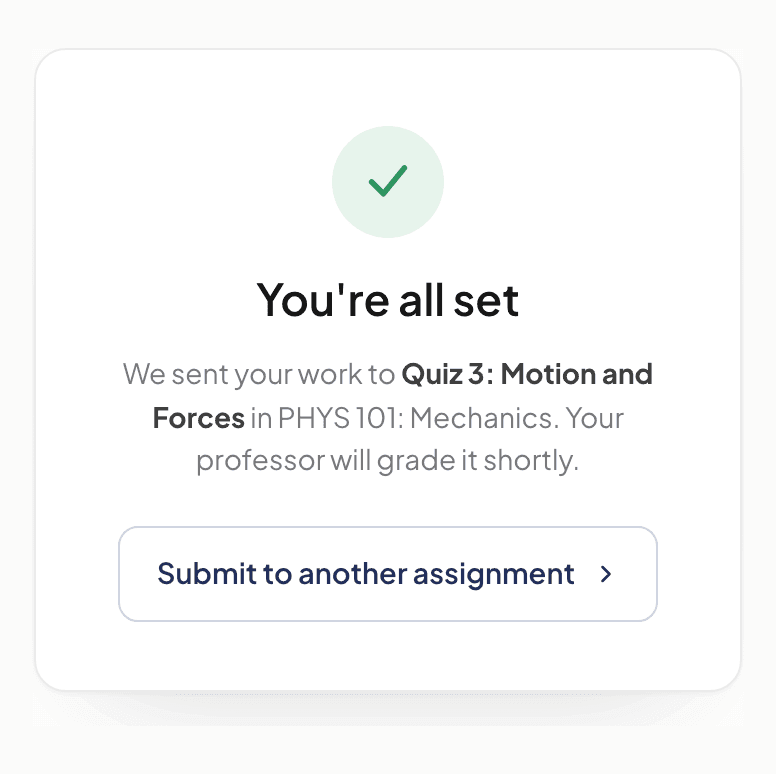
Where it is: the check mark and You’re all set, once everything is saved.
Seeing your feedback
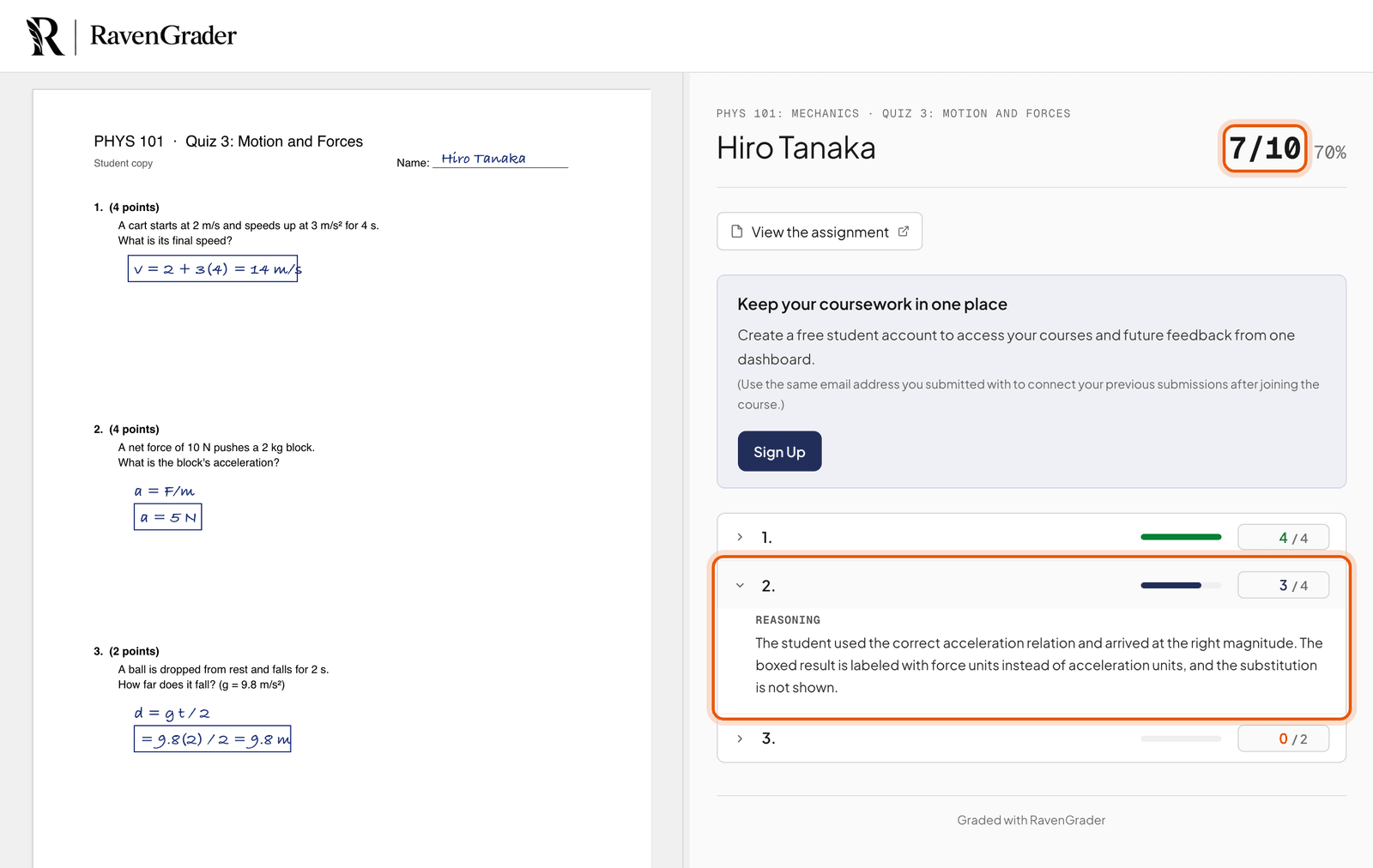
Once your work is graded, your instructor sends you a private link to your report. It shows your score and feedback on every question, and you can print it or save it as a PDF. Only you get your link. The join code never shows anyone’s grades.
If something goes wrong
- The code isn’t recognized. Check every letter and number, or ask your instructor for the link.
- Your assignment isn’t listed. It may not be open yet. Ask your instructor when it opens.
- Your assignment is greyed out. Its due date has passed, so it can’t take new work. Only your instructor can change that.
- The upload doesn’t finish. Stay on the page, check your connection, and submit all your files again. You’re done only when you see You’re all set.